Syniti Migrate
Mapping History
Within the Mappings section of Syniti Migrate the Mapping History or audit trail for a field may be viewed. To access the history, select the table to audit in the Source panel on the Mappings multi-panel page. Next, select the Mapping  icon. From within
the Mappings panel, select the History  icon on the left side of the field name to populate a map audit log.
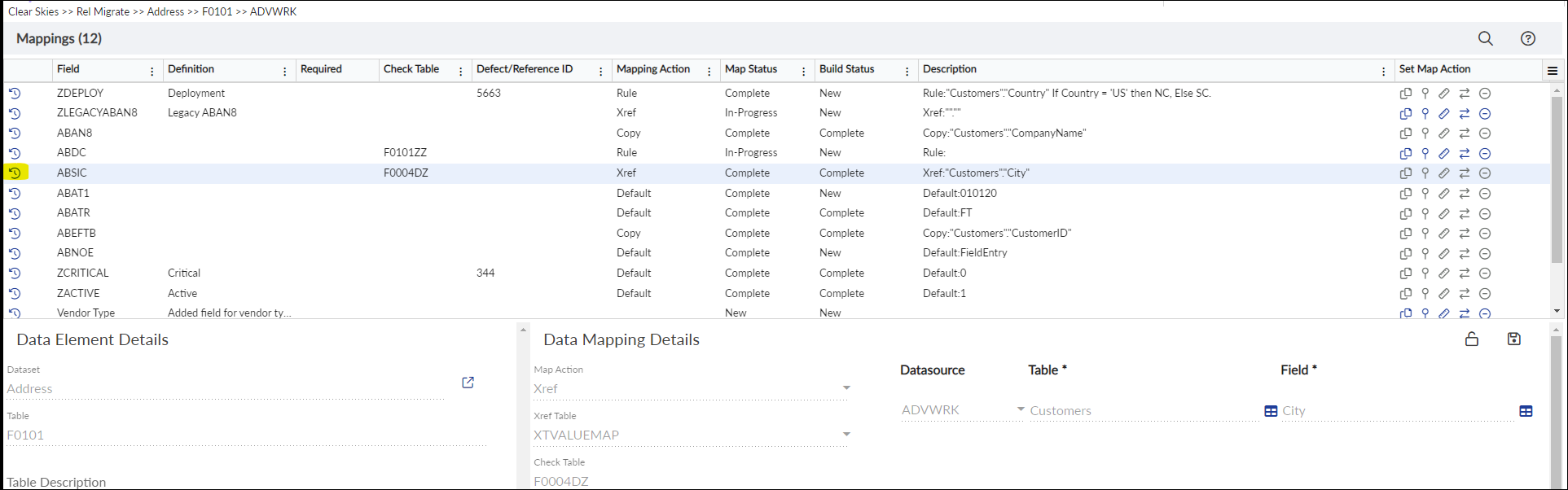
Mappings: Display all field mappings
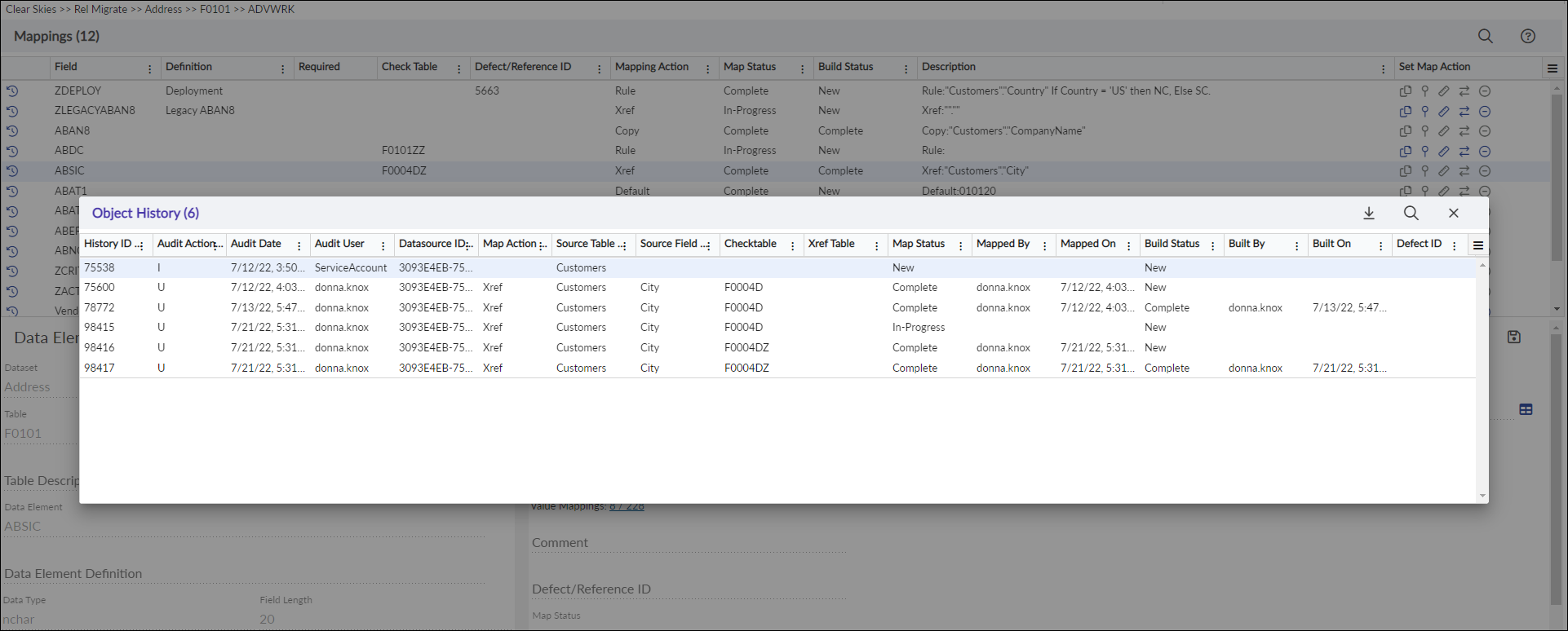
Mappings: Object History
The Object History window will display the fields below:
|
Heading |
Definition |
|---|---|
|
History ID |
Index number for the action. |
| Audit Action | Type of action. (Ex: I - Insert, U-Update, D-Delete) |
| Audit Date |
Date the action took place. |
| Audit User |
User who created this action. |
| Data Map ID | GUID to identify the Data Map. |
| Interface Source ID | GUID to identify the Interface Source. |
| Data Element ID | GUID to identify the Data Element. |
| Datasource ID | GUID to identify the Datasource. |
| Map Action | The mapping action for this field. |
| Source Table | Table used for mapping from. |
| Source Field | Field in Source Table used for mapping from. |
| Default | Default value for the mapping. |
| Mapping Rule | The Rule details for building the rule. |
| Comment | Additional comments |
| Checktable | Checktable associated with the field. |
| Xref Table | Xref table for this Xref action. |
| Map Status | Status of the mapping action. |
| Mapped By | Username of the Mapper. |
| Mapped On | Date the field was mapped. |
| Build Status | Status of the build action. |
| Built By | Username of the developer who built the action. |
| Built On | Date that the action was built. |
| Defect ID | Defect/Reference ID for this field. |