Syniti Migrate
ETL Jobs Details
This topic relates to the following sections:
This page contains the following sections:
About ETL Job Details
Once the object has been set up as a Syniti Migrate ETL process, the ETL  icons display within each of the four panels of the Mappings page. After Mappings have been updated for the object, click on the ETL icon to initiate the automatic build of the levels and tasks.
Execute the ETL Job conversion within Migrate > Mappings, and view ETL Job Details by either of these pathways:
-
Click Migrate > ETL Jobs from the Syniti Migrate Homepage to view ETL Transform Job List page
-
Click the Edit icon for any task to view the ETL Job Details page.
OR
ETL Jobs are accessed from all four levels of the Mappings page. Each ETL icon when clicked displays that level of the overall ETL Job with rows of Job Tasks all linked together. From within Migrate > Mappings, click ETL icon from one of the four levels of Mappings to view ETL Job Details for that level.
View ETL Job Details
The ETL Job displays with the Version highlighted in the header bar, and the Selected ETL Type field provides a drop down list of the attached ETL Job Types associated with this ETL Job.
View the specific tasks by clicking the Edit icon for that task. The Tasks may be executed from this page, and tasks may be copied or added for the Selected ETL Type.
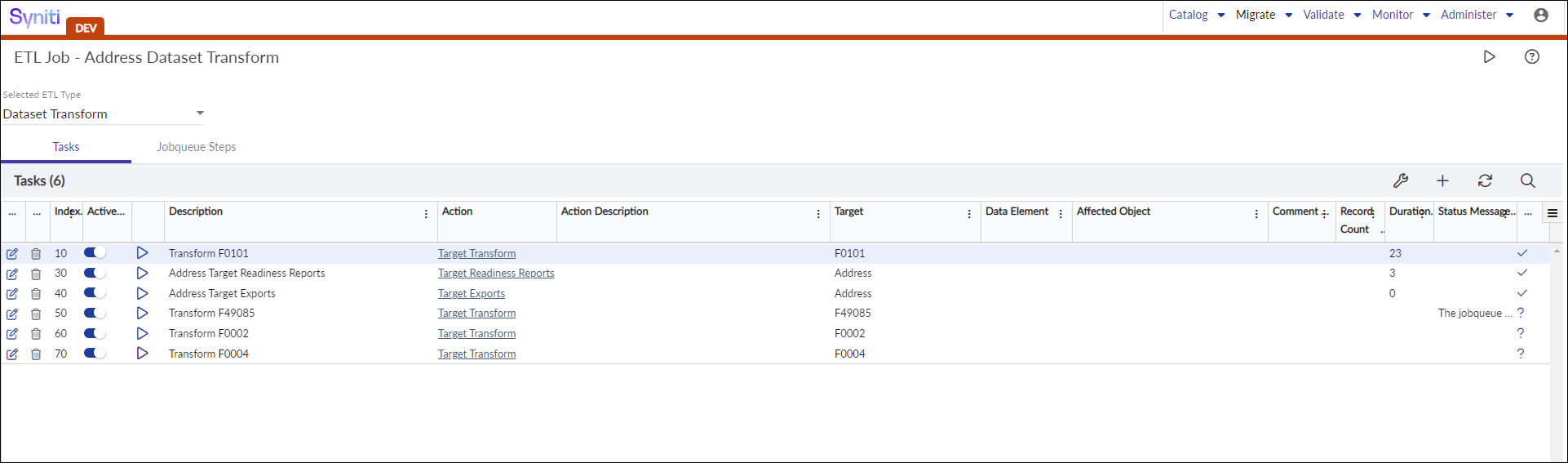
This process is a display of the overall list of ETL Jobs. Tasks may not be deleted within this section. The details of this are defined within section Execution of the ETL Jobs.
Version Selection within ETL Jobs List
Each Dataset may run against each Release Milestone as a set of statistical data. The column Version within this page provides the Milestone version of this Datasets ETL Job. Refer to section Migrate > Mappings > ETL Jobs > ETL Version Selection for details of this setup and processing.
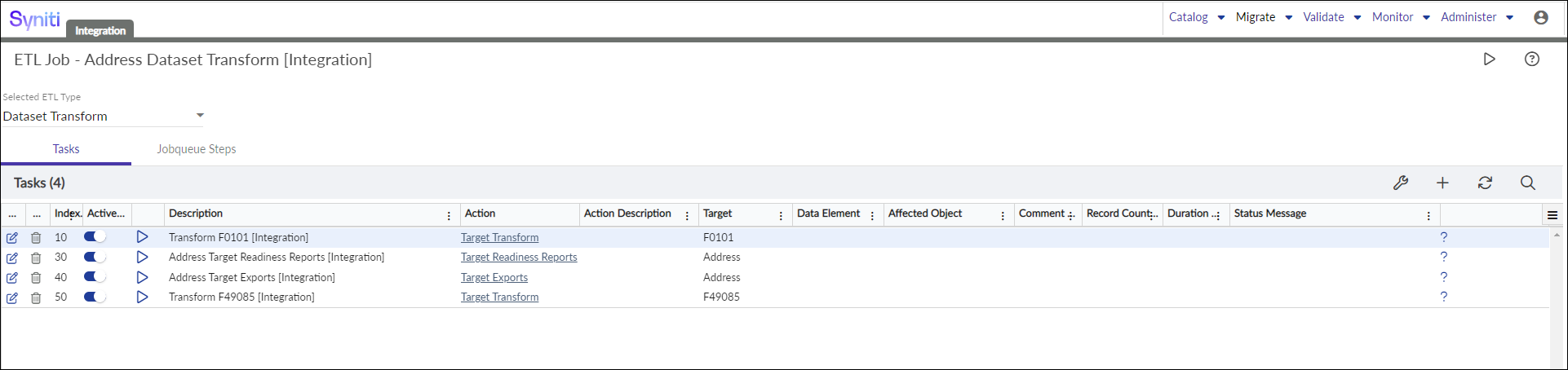
ETL Job Tasks: Version Selection: Integration Test