Syniti Migrate
Metrics Configuration
This topic relates to the following sections:
This page contains the following sections:
About Metrics Configuration
The Migration system provides two types of standard metrics - the Metrics Scorecard and the PMO Dashboard. Each provides opportunity to track project status and each is discussed in this section.
Metrics Scorecard provides an open opportunity to build out metrics for Objects within the system based upon queries that are added to the Metric. Refer to section Monitor > Metrics Scorecard for details of this process.
-
The defaulted set of metrics identified as Scorecard Metrics may be edited and marked as Active or Inactive, but they cannot be deleted.
-
Project leadership may determine additional metrics based upon captured values for numerator and denominator.
-
Manually captured metric values are not part of the metrics scorecard reporting
-
New metrics may be added to the Metric Scorecard as Scorecard Metrics to calculate any measurable metric
PMO Dashboard uses fields added to the Syniti Migrate system and data stored within the database that calculates the metrics as defined by Syniti leadership. Refer to section Monitor > PMO Dashboard > Working with PMO Dashboard for details of this process.
-
These metrics were determined as relevant for most migration projects and they are static.
-
Manually captured metric values are identified within
-
New metrics may be added to the PMO Dashboard as Milestone Metrics to calculate any measurable metric
Both sets of Metrics are configured within this same page. Each Metric is identified as either a Scorecard Metric or a Milestone Metric for use.
Display Details for a Metric Process
Click on the Edit  icon on the row for the Metric Name to Edit.
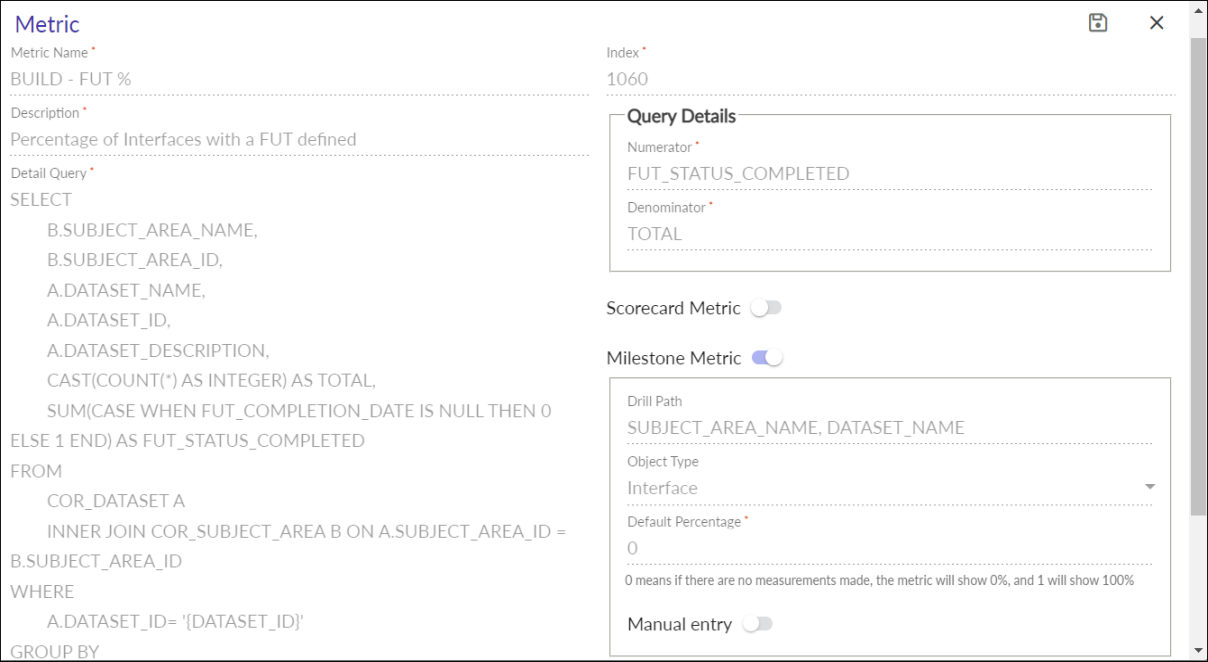
Metrics Configuration: Edit an existing metric
Execution of the Scorecard Metric
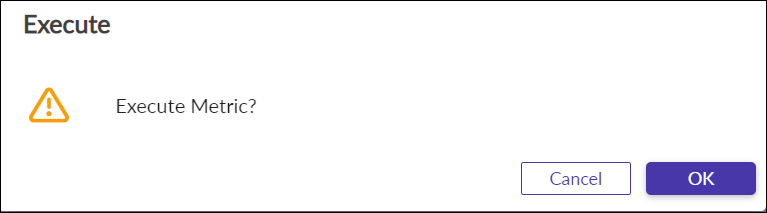
Select the Metric Process in the Metrics panel and click the Execute  icon to RUN the Scorecard Metric. A window displays with message "Execute Metric?" Click OK to proceed.
A pop-up displays stating "Executed successfully" and automatically assigns the Metric to:
-
Project and Milestone combination AND / OR
-
Project and Deployment combination AND / OR
-
Project and Subject Area that has been set up previously
Make sure the metric is selected in the above panel.
Edit Metric Thresholds for a Milestone
The Scorecard Metrics require the setup of metric thresholds to determine the Red/Yellow/Green stop lights for each Release/Metric. For these metric thresholds, the user selects from a drop down the Release name. Once entered, a list of Metric details display as blocks listed in columns of each Milestone that may be modified and saved all at the same time. Each metric threshold be saved with the updated values for Yellow Pct and Green Pct.
Within the Metrics Thresholds for Milestones panel, select from the drop down list the relevant Release for metric threshold update.
NOTE: Every metric may be applied to Scorecard or PMO or both. These Metric Thresholds are relevant to the Scorecard Metrics process ONLY as they use the stop lights. They have no effect on the PMO Dashboard or Milestone Metric display.
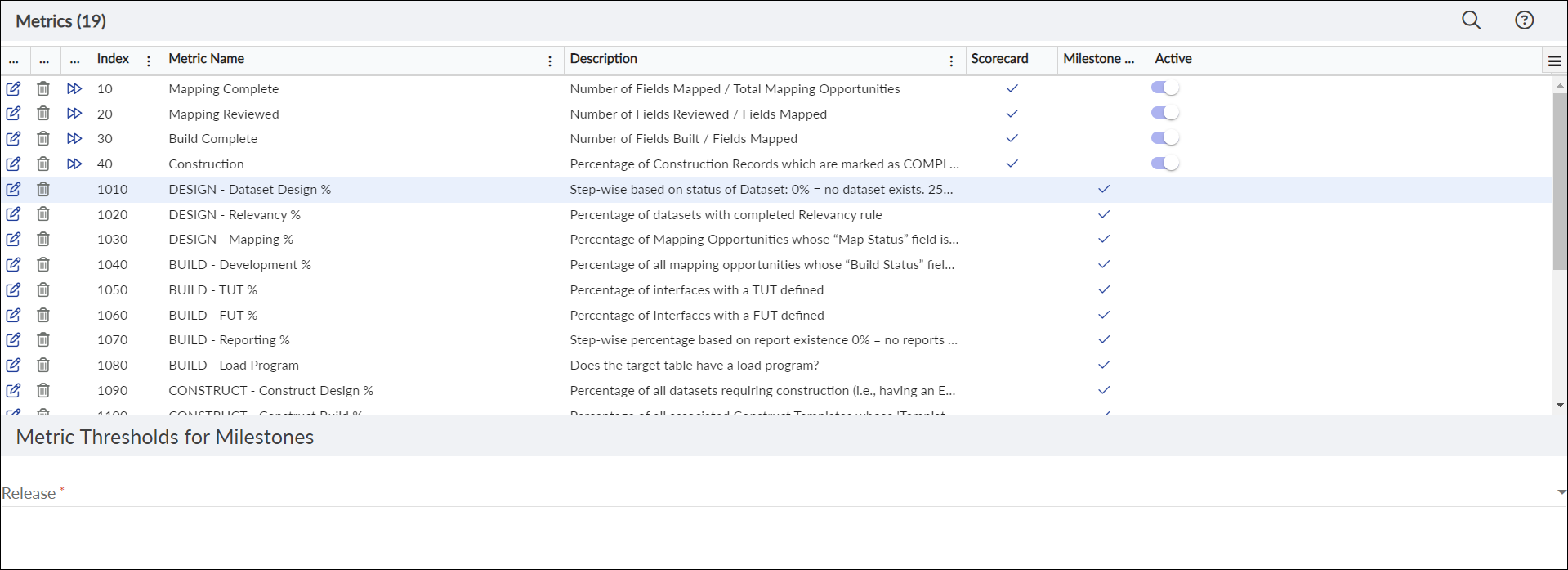
Metrics Configuration: Metric Thresholds for Milestones
Enter values from 1 - 99 as a percentage for the fields Yellow Pct and Green Pct to set the boundaries of the metric. As each metric is updated, click on the SAVE  icon to set the values.
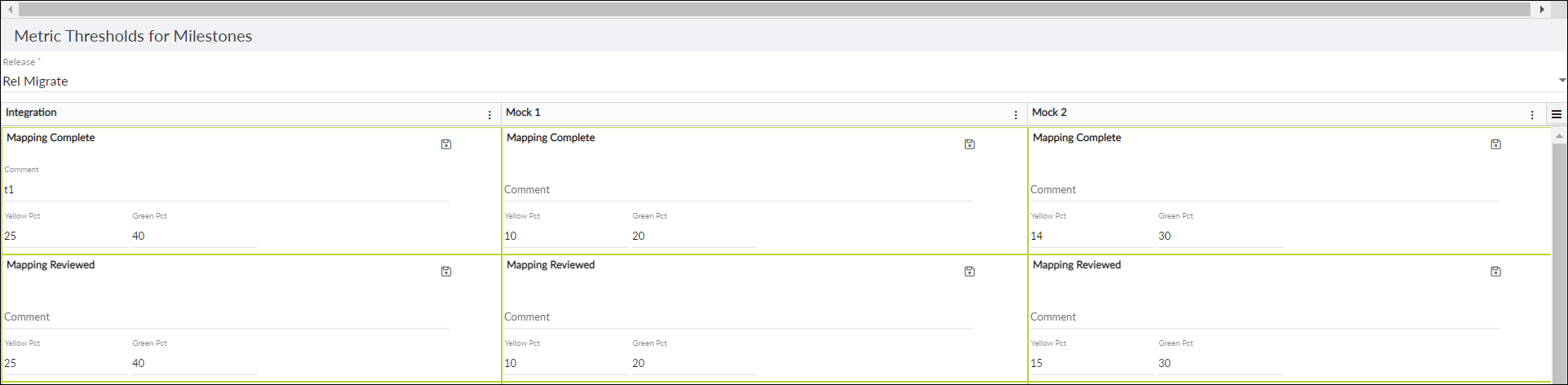
Metrics: Metric Thresholds for Milestones: Edit
|
Field |
Definition |
|---|---|
|
Metric |
The name of the metric (Displayed) |
|
Comment |
Additional comments entered as text within each metric threshold block |
|
Green Pct |
Enter value for boundary minimum to reach Green color |
|
Yellow Pct |
Enter value for boundary minimum to reach Yellow color |
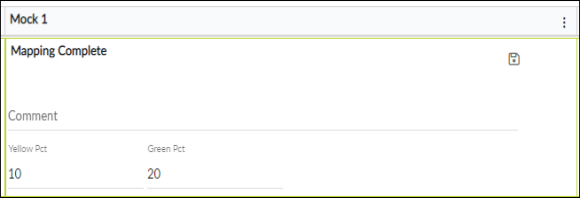
As Example: above 90 = GREEN, between 90 and 10 = YELLOW, below 10 = RED. As the fields are updated, the Save icon changes to active. Click on the SAVE icon to complete this action.
NOTE: These boundaries are specific to each metric and they produce the Red, Yellow, or Green stop lights within the Metrics Scorecard.
To validate that the work is complete and correct, go to menu Monitor > Metrics Scorecard and drill down to the updated Milestone.
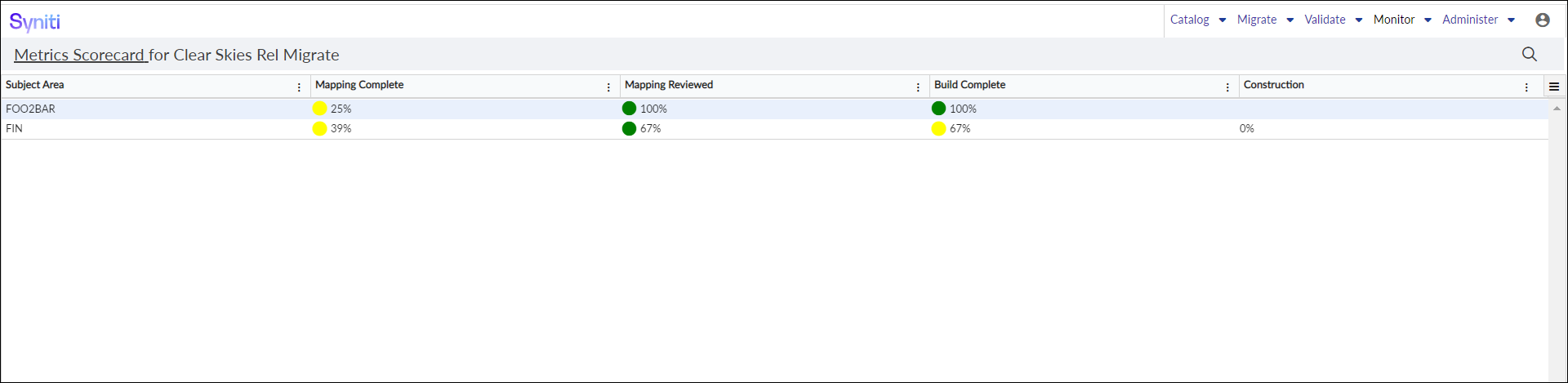 Metric Scorecard: List metrics with color status