Syniti Migrate
Script Templates
This topic is related to the following section - Validation Hub
This topic contains the following sections:
Overview
Script Templates allows for building and editing validation hub scripts that have been saved as a template. This is very useful for a project that expects a standard for the Preload and Postload scripts in validation. The script template may be used to copy from during the Add Script process within the Validation Hub.
Users & Roles in Script Templates
Admin level access is required to maintain this section of the system.
Working in Script Templates
View the following page by navigating to Administer > Advanced > Script Templates from the Syniti Migrate Homepage. The system defaults two templates (Preload Validation and Postload Validation). Each script template may contain multiple tasks. Maintenance of the script templates and tasks are available within this section.
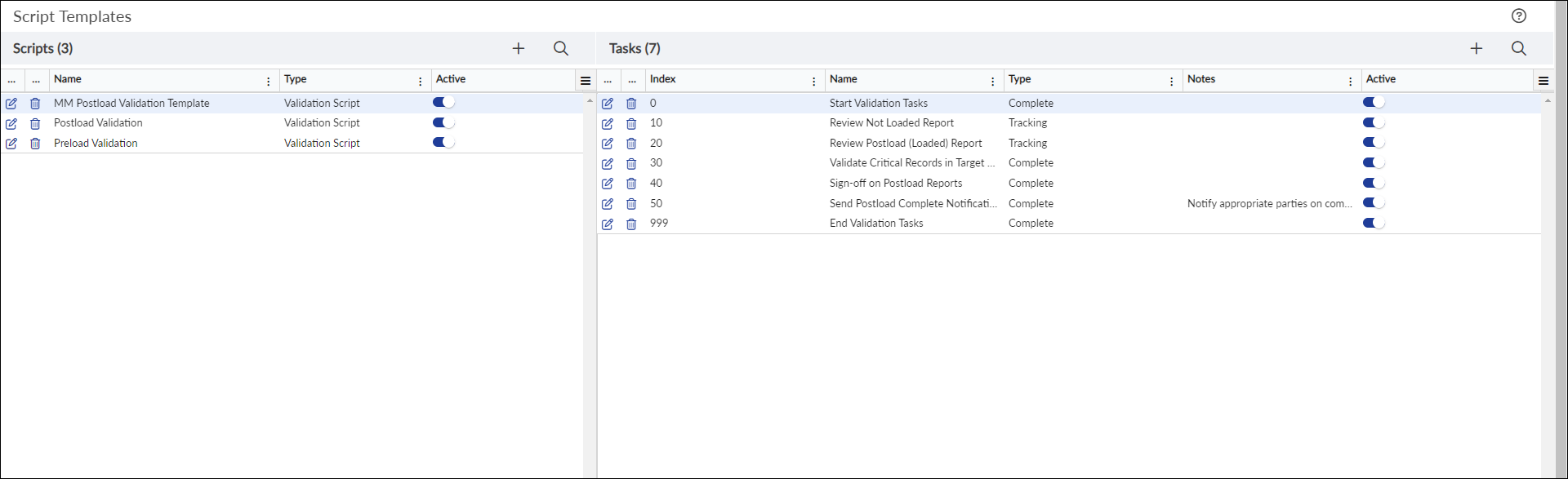
Script Templates: Main page
The Scripts panel grid displays the following fields:
|
Heading |
Description |
|---|---|
|
Name |
Name of the Dataset. |
|
Type |
Displays the Script Type. Refer to Script Types and Use below. |
|
Active |
Toggle to set status of the Script Template. NOTE: Defaults as Active. |
The Tasks panel grid displays the following fields:
|
Heading |
Description |
|---|---|
|
Index |
Sequence of the Tasks. Value increases by factor of 10 for each new entry. |
|
Name |
Name of the Task. |
|
Type |
Displays the Type of Task. Refer to Task Types and Use below. |
|
Notes |
Displays additional notes for the task. |
|
Active |
Toggle to set status of the Task. NOTE: Defaults as Active. |
Add a Script Template
To add a script template, click Add  icon within the header of Scripts panel and fill in the required fields.
NOTE: Add a Script Template from within the Validation Hub through the Save as Template option within a card.
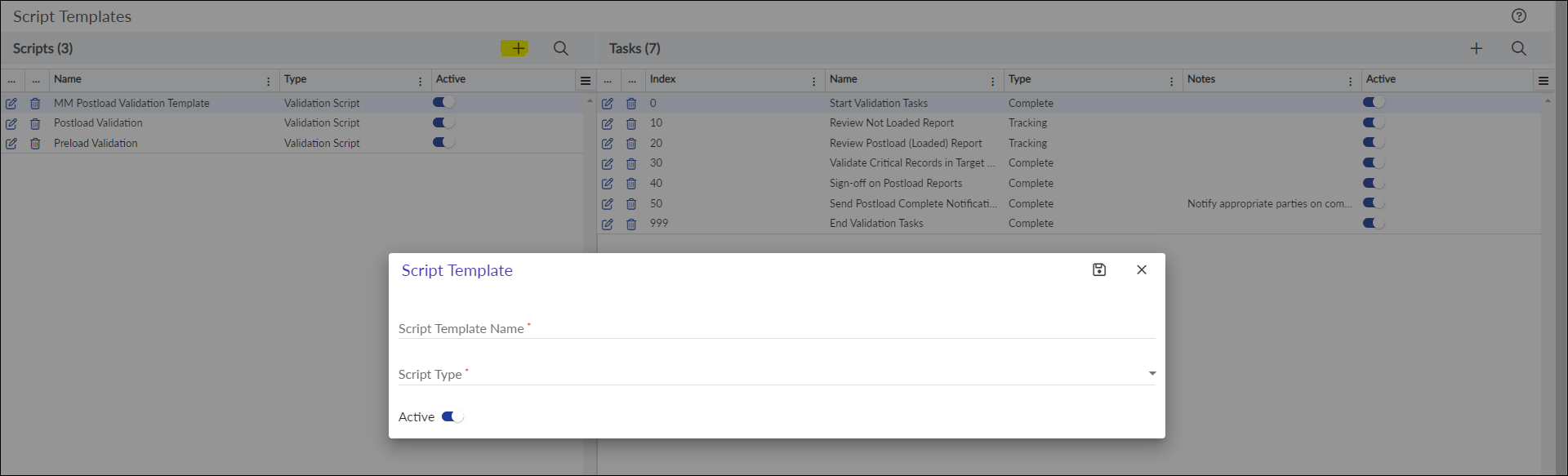
Script Templates: Add a script template
Field definitions for Script Template:
|
Field |
Description |
|---|---|
| Script Template Name* | Enter a name for the Script Template. (Required) |
| Script Type* | The Script Type will default to Validation Script. |
| Active | Toggle to set status of the Script Template. NOTE: Defaults as Active. |
Once the required fields are filled, click Save  icon to complete or Cancel
  icon to exit the process. The script template is displayed in the list.
Edit a Script Template
To edit an existing script template, click Edit  icon, modify the fields and click Save icon to complete or Cancel icon to exit the process.
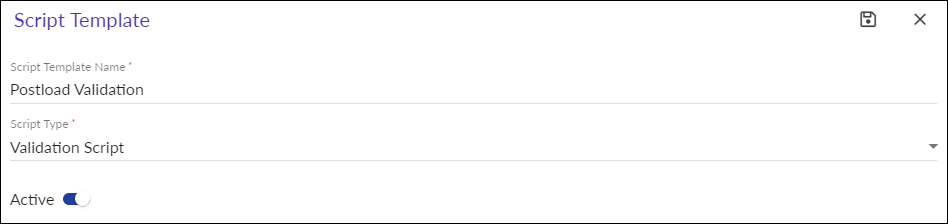
Script Templates: Edit a script template
Delete a Script Template
To delete a script template, click the Delete  icon for that row. A confirmation warning will display. Click OK
  button to proceed, or Cancel
  button to exit the action.
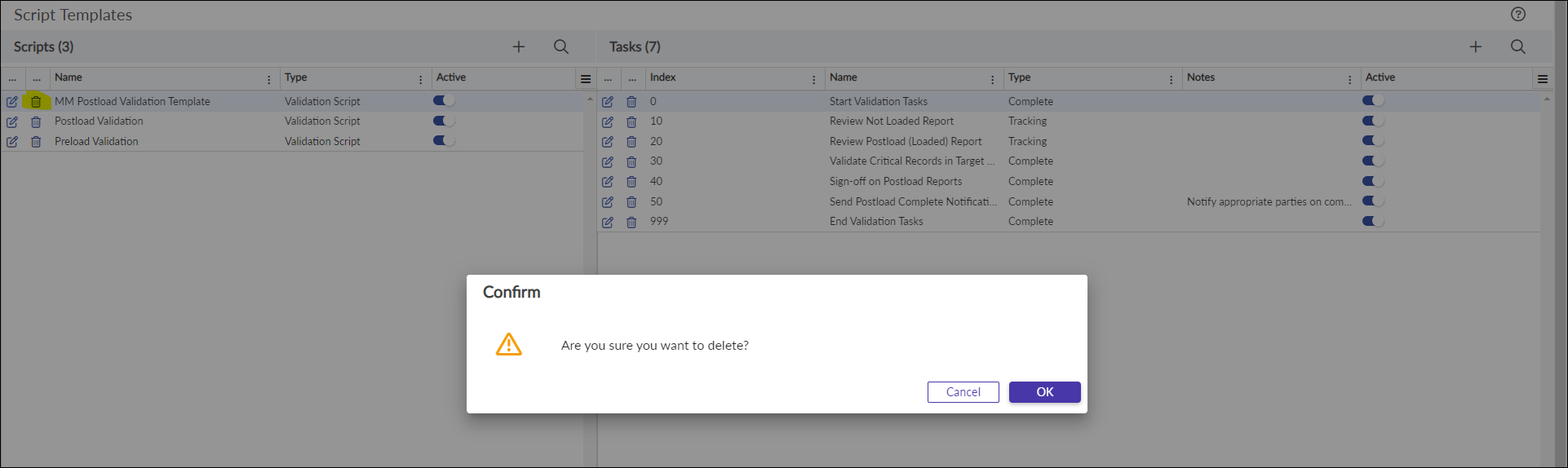
Script Templates: Delete a script template
Add a Task
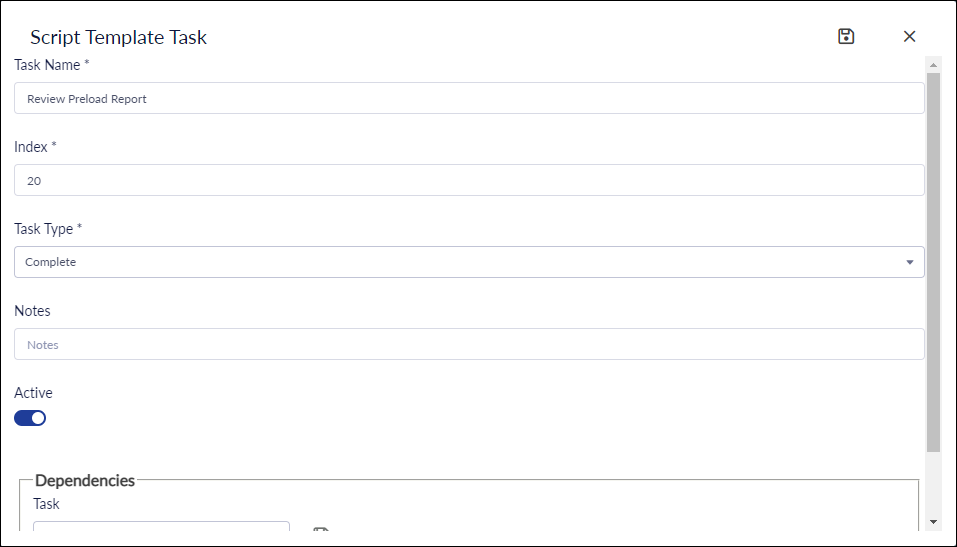
To add a task, click Add icon within the header of Tasks panel and fill in the required fields.
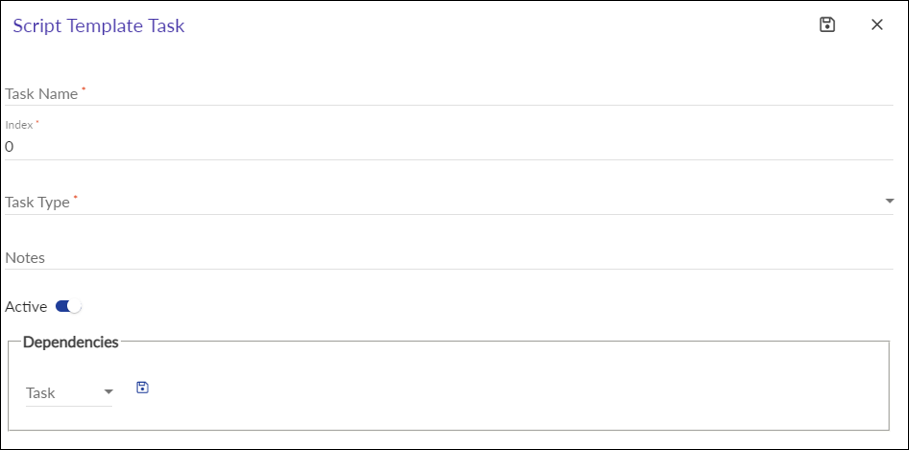
Script Templates: Add a Task
Field definitions for Task:
|
Field |
Description |
|---|---|
| Task Name* | Enter a name for the Task. (Required) |
| Index* | Enter the Index value for this task. |
| Task Type* | Select from the list the task type. (Ex: Complete, Tracking, Email). Refer to section Task Type and Use for details. |
| Tracking Field Name* |
Enter the Tracking Field Name for this task to allow for entry of tracking values. NOTE: This field is available if the Task Type is Tracking. |
| Email To |
Enter one or more email addresses separated by a semicolon. (Required) NOTE: This field is available if the Task Type is Email. |
| Email Cc |
Enter one or more email addresses separated by a semicolon. (Required) NOTE: This field is available if the Task Type is Email. |
| Email Subject |
Enter the subject of this email. (Required) NOTE: This field is available if the Task Type is Email. |
| Email Body |
Enter the body text for this email. (Required) NOTE: This field is available if the Task Type is Email. |
| Notes | Enter additional information about this task. |
| Active | Toggle to set status of the Script Template. NOTE: Defaults as Active. |
| Task |
Select from the list of existing tasks for this script template as a dependency task. NOTE: This task must be saved prior to saving the Task list. Once saved, additional tasks may be added to this same section. |
Once the required fields are filled, click Save icon to complete or Cancel icon to exit the process. The task is displayed in the list.
Edit a Task
To edit an existing task, click Edit icon, modify the fields and click Save icon to complete or Cancel icon to exit the process.
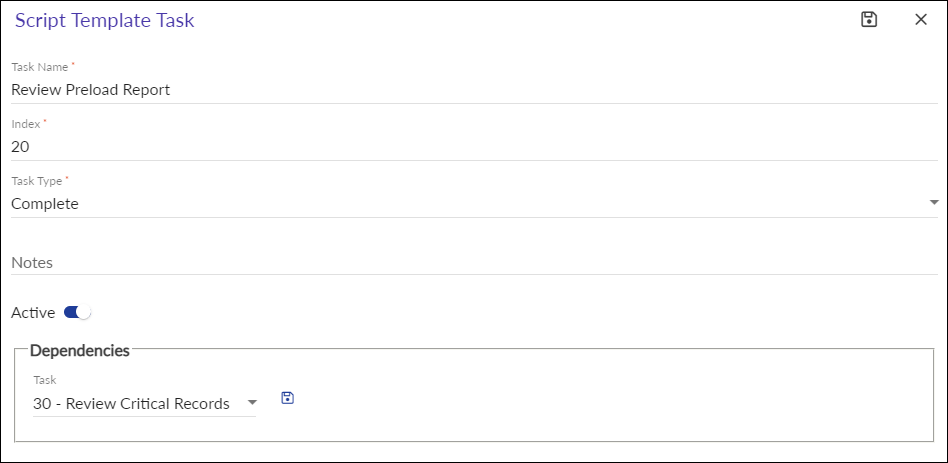
Script Templates: Edit a Task
Delete a Task
To delete a script template, click the Delete icon for that row. A confirmation warning will display. Click OK button to proceed, or Cancel button to exit the action.
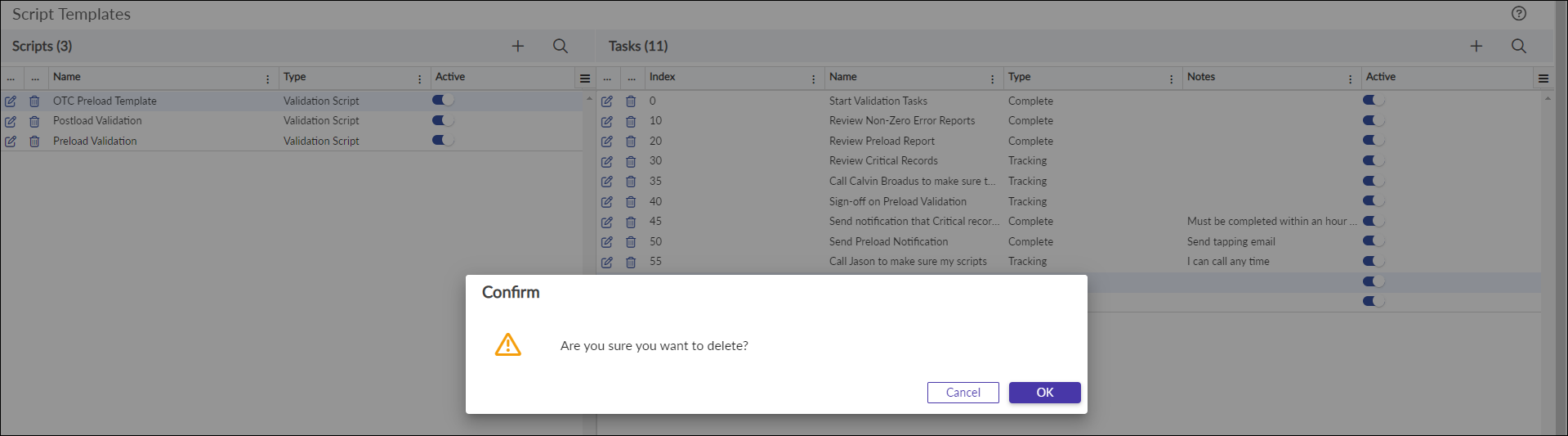
Script Templates: Delete a Task
Script Type and Use
The field Script Type is a required field that provides the setting in which this script template is used. There may be multiple Script Types going forward, and although the system defaults a Script Type of Validation Script there may be other selections for use in the future.
NOTE: The value Execution Script is not yet in use.
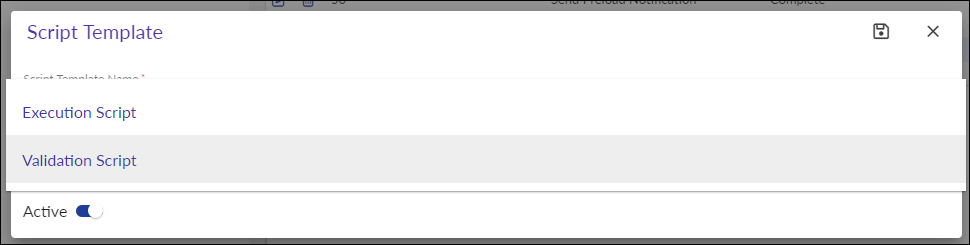
Script Template: Script: Script Type
Task Type and Use
The field Task Type is a required field that provides the type of task. Currently there are two task types:
-
Complete - This is a task that has to be completed in the sequence stored.
-
Tracking - This is a task that contains an additional field to track a value relevant to the task.
-
Email - This task provides an email to the user once the task is completed.
Script Template: Task: Task Type
Task Dependencies
Within the Tasks, a task may be assigned dependencies to other tasks of the same script template. Dependencies may be added during the add or edit process, and they must be saved individually for each prior to saving the task. These tasks cannot complete until the dependencies are complete.
Script Templates: Dependencies